Privacy4 min read
Local-first is a data boundary, not a badge
What stays on your device, what an optional account changes, and what to check before connecting a service.
By ClipsX
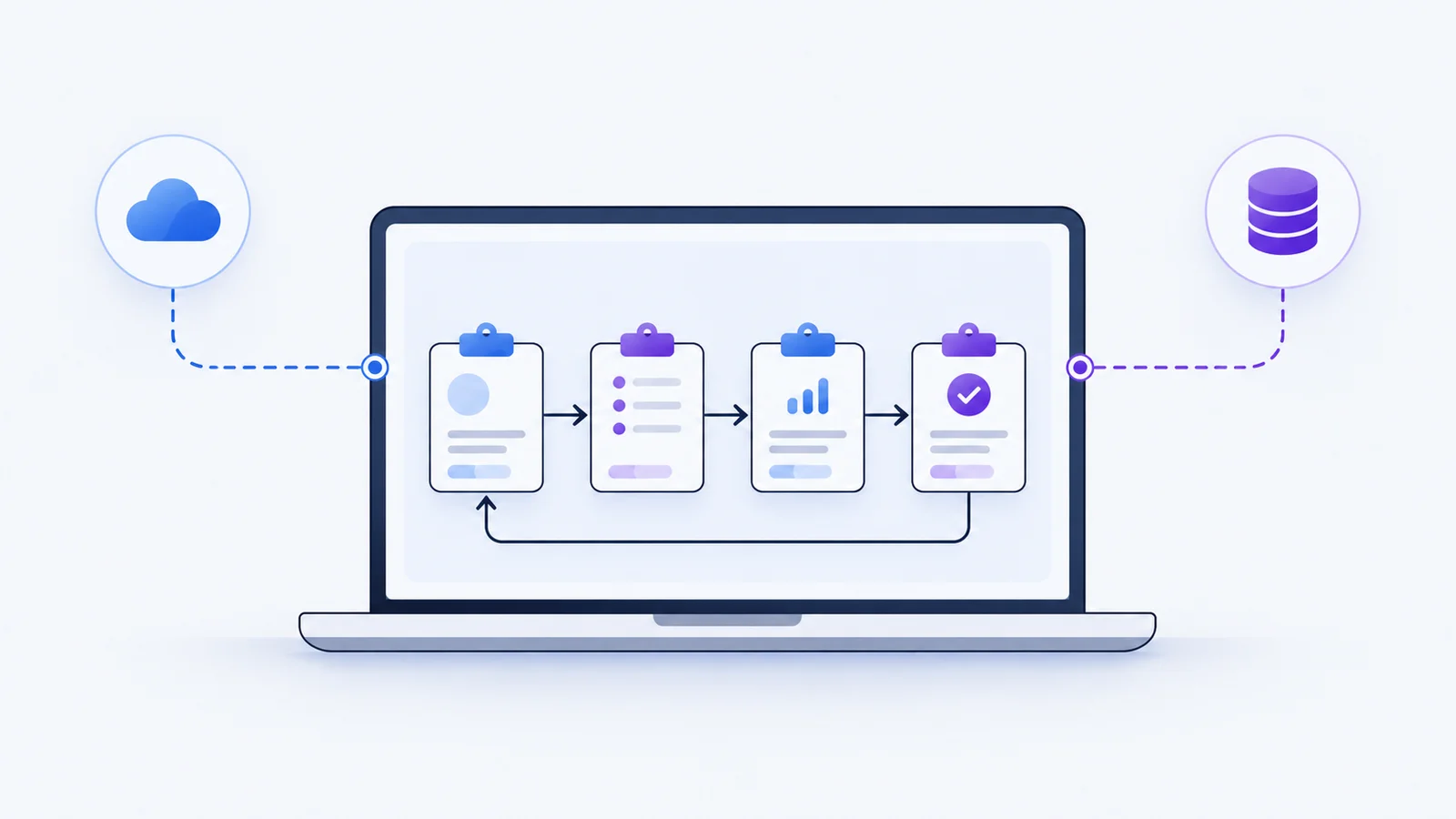
Your clipboard is your working memory
Every single day, your clipboard handles high-velocity secrets. You copy production database credentials, customer support conversations containing personal addresses, private API tokens, and sensitive internal Slack messages. Keeping this material easily retrievable accelerates your daily workflow, but it also creates a repository of high-value data. The question is not whether this history is useful—it is where that history lives, and who has access to it.
In ClipsX, “local-first” is an architectural boundary, not a marketing slogan. Your clipboard history is owned and stored entirely on your local machine by the desktop application. You do not need to create an account, enter an email, or connect to a cloud service to capture, search, or reuse clips. The core workflow operates completely offline from day one, ensuring your working memory stays on your hardware.
What stays strictly on your machine
Captured clipboard snippets, personal notes, tags, OCR text, and semantic search indexes never touch cloud servers. When you run search or build text embeddings, those derived representations stay on your local disk. ClipsX does not maintain a shadow cloud copy of your history. Model configurations, local inference paths, and extension permission grants are also pinned strictly to your physical device rather than roaming across devices.
Local storage provides physical isolation, but it does not replace operational hygiene. Local-first is not an automatic cloud backup, nor does it protect your files if someone gains administrative access to your physical workstation. Use your operating system’s disk encryption (such as FileVault or BitLocker) and maintain independent, controlled backups of essential documents. Clipboard history is an index for retrieval, not an archive for permanent storage.
An optional account syncs preferences, not clips
If you choose to sign in, configuration sync is limited to lightweight, portable preferences. This includes your chosen UI theme, language settings, custom keyboard shortcuts, and approved extension configurations. It explicitly excludes clipboard text, images, notes, tags, credentials, and search indices. Signing out instantly pauses sync while leaving your local clipboard history intact.
Settings sync is not an end-to-end encrypted vault; the synchronization service reads your serialized configuration preferences. It is completely independent from the historical Vault feature, which remains unavailable. Signing in or supporting the project does not convert your history into cloud storage, and paid Pro billing is not active. Judge ClipsX by the concrete software running on your desktop today, rather than future cloud roadmaps.
External connections require explicit choices
When you enable Meaning Search using the supported loopback Ollama connection, all embedding generation and query processing execute entirely on your CPU or GPU. However, downloading the model weights initially requires an external internet connection. Local inference and remote asset downloads are distinct activities; never assume that every AI service or every Ollama endpoint runs purely offline without verifying its network configuration.
Extensions and integrations can also request external network access or model provider capabilities. Before granting network permissions to any tool, verify the destination endpoint and data handling policy. While a local-first application ensures your base history remains offline, an explicit external action can transmit selected text. The destination and purpose of that transmission should align with the sensitivity of the data you handle.
A practical routine for clipboard privacy
Build a deliberate clipboard routine by starting with non-sensitive clips. Practice searching, organizing, and permanently deleting history entries. Regularly review capture settings, installed extension permissions, and active connections, keeping only what directly supports your immediate workflow. When filing a bug report or requesting support, describe symptoms without pasting private tokens, credentials, or customer data into messages.
- Keep critical production keys and recovery seeds in dedicated, encrypted password managers.
- Periodically re-evaluate extension capabilities whenever a tool or workflow requirement changes.
- Remember that clearing local desktop history and closing an optional cloud account are independent actions.
Begin with a single useful clip
Testing local-first productivity does not require an account, an AI model, or a subscription. Simply copy a command or note you frequently use, search for it inside ClipsX, and paste it back into your work. Add optional connections or local models only when you have a clear, specific job for them. For details on account data, telemetry, and website measurement, consult our Privacy Policy, which outlines boundaries separate from local storage.
Sources & next steps
Keep exploring
All articles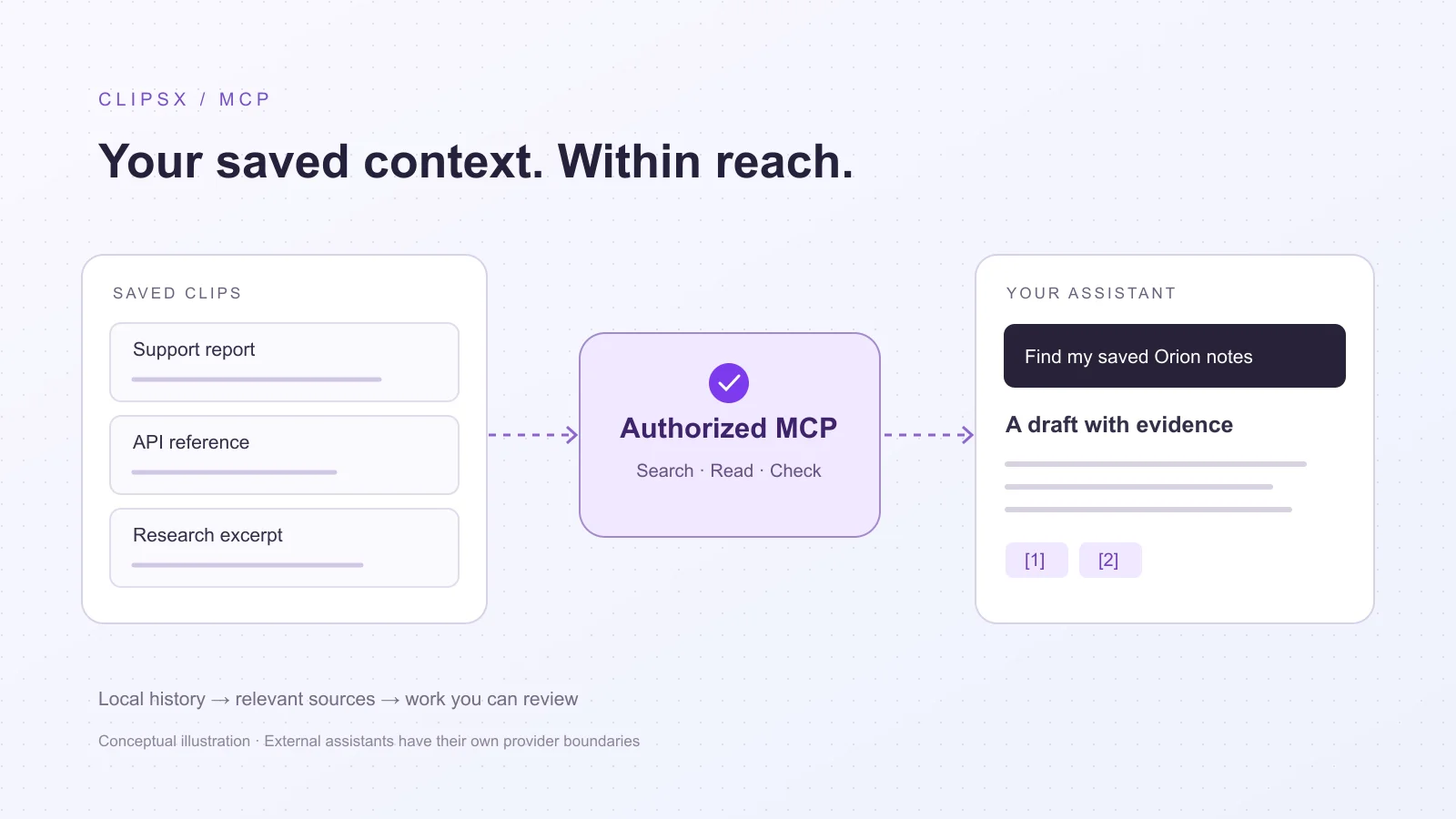
Assistant workflows4 min read
Let your assistant find what you already copied
Connect Claude Code, Codex, or any MCP client to your clipboard. Turn copied snippets into grounded engineering handoffs, coding context, and research briefs.
Read article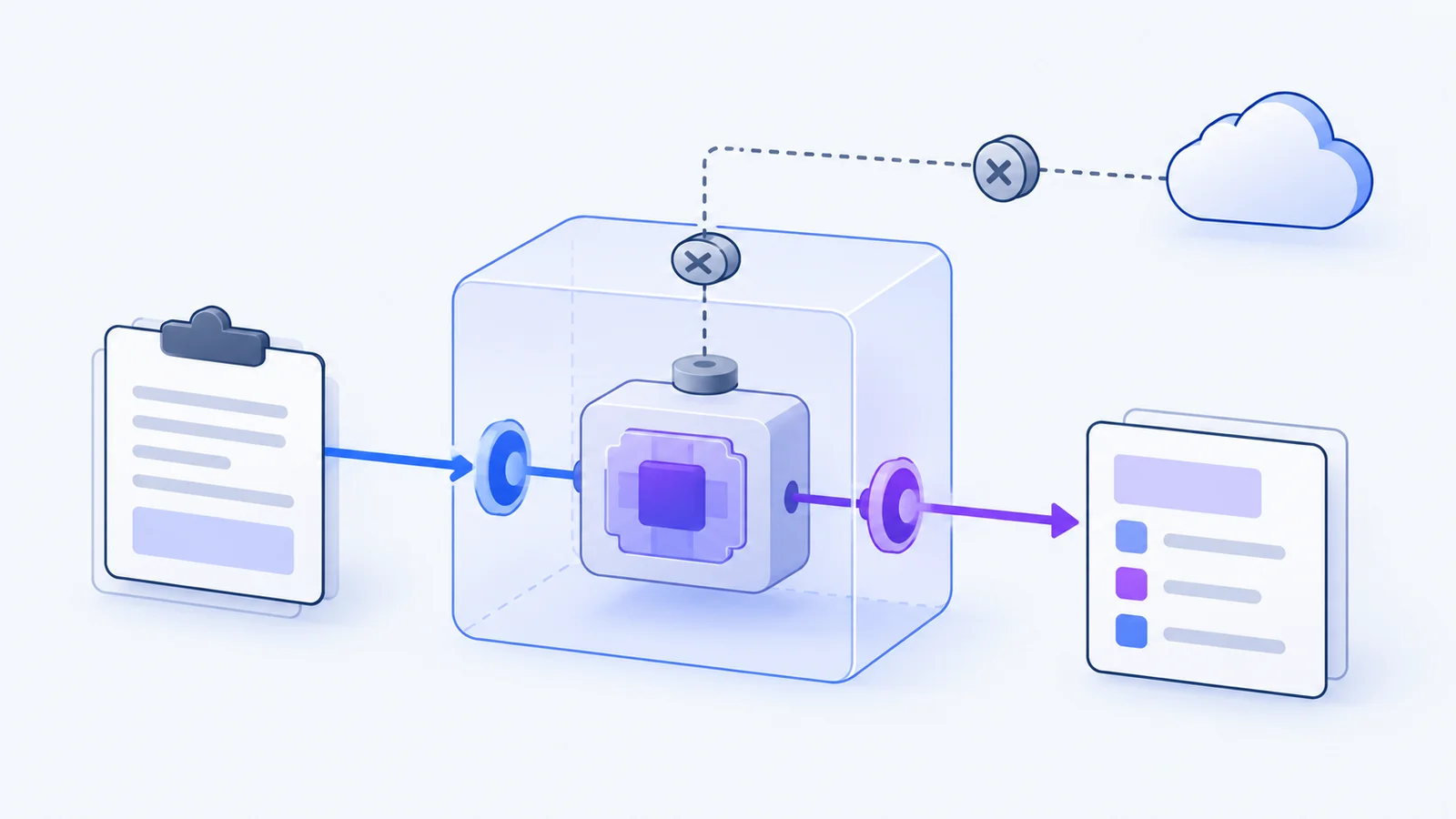
Extensions4 min read
Why clipboard extensions need boundaries
You copy API tokens, customer records, and private messages every day. Here is how WebAssembly sandboxing lets you format and transform snippets without leaking your clipboard.
Read article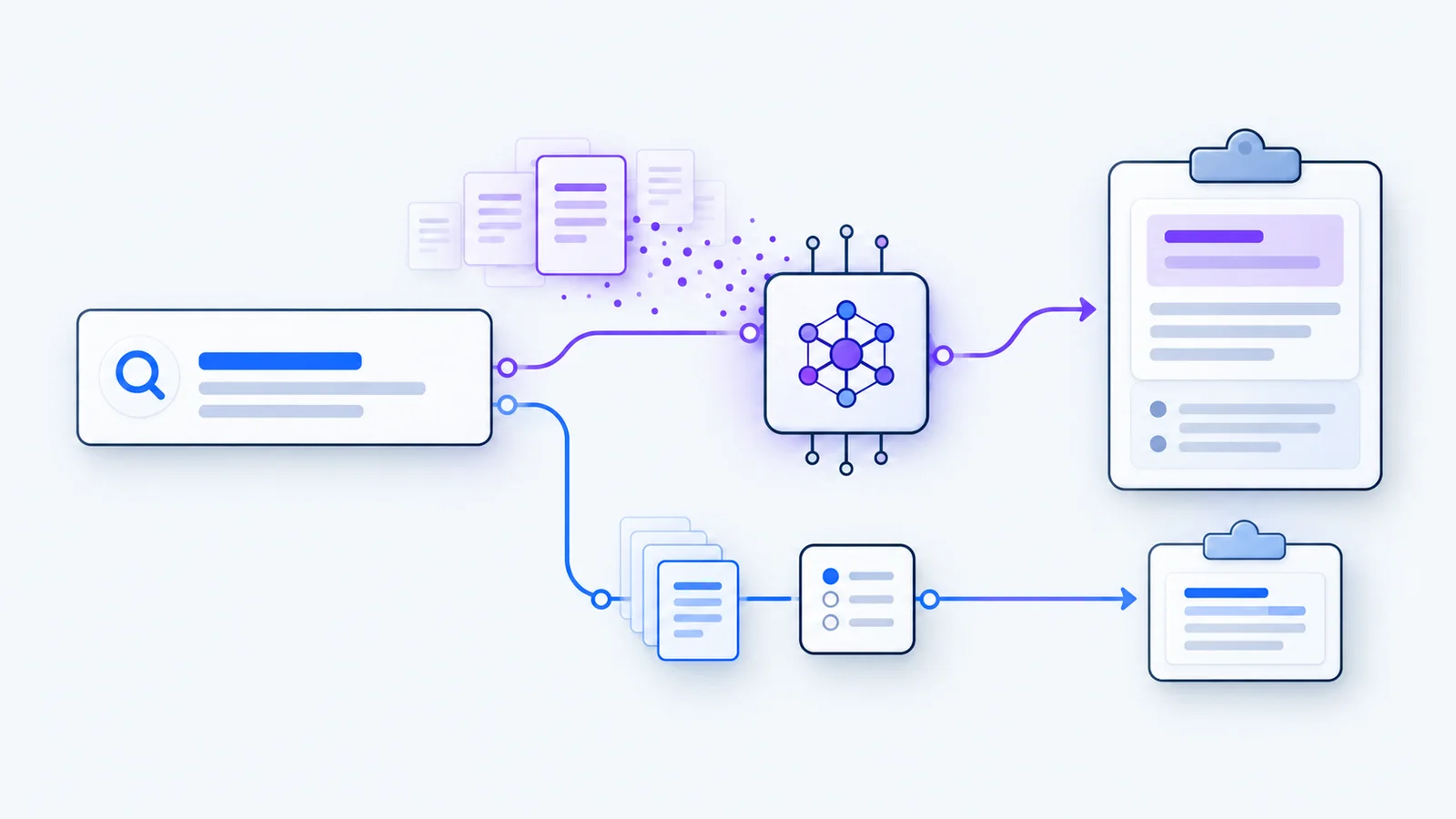
Local AI4 min read
Meaning Search, on your machine
Find a clip by the idea you remember. A practical guide to exact search, local embeddings, and Ollama setup.
Read article