Windows workflows6 min read
Windows 11 clipboard history: the 25-item limit and how to overcome it
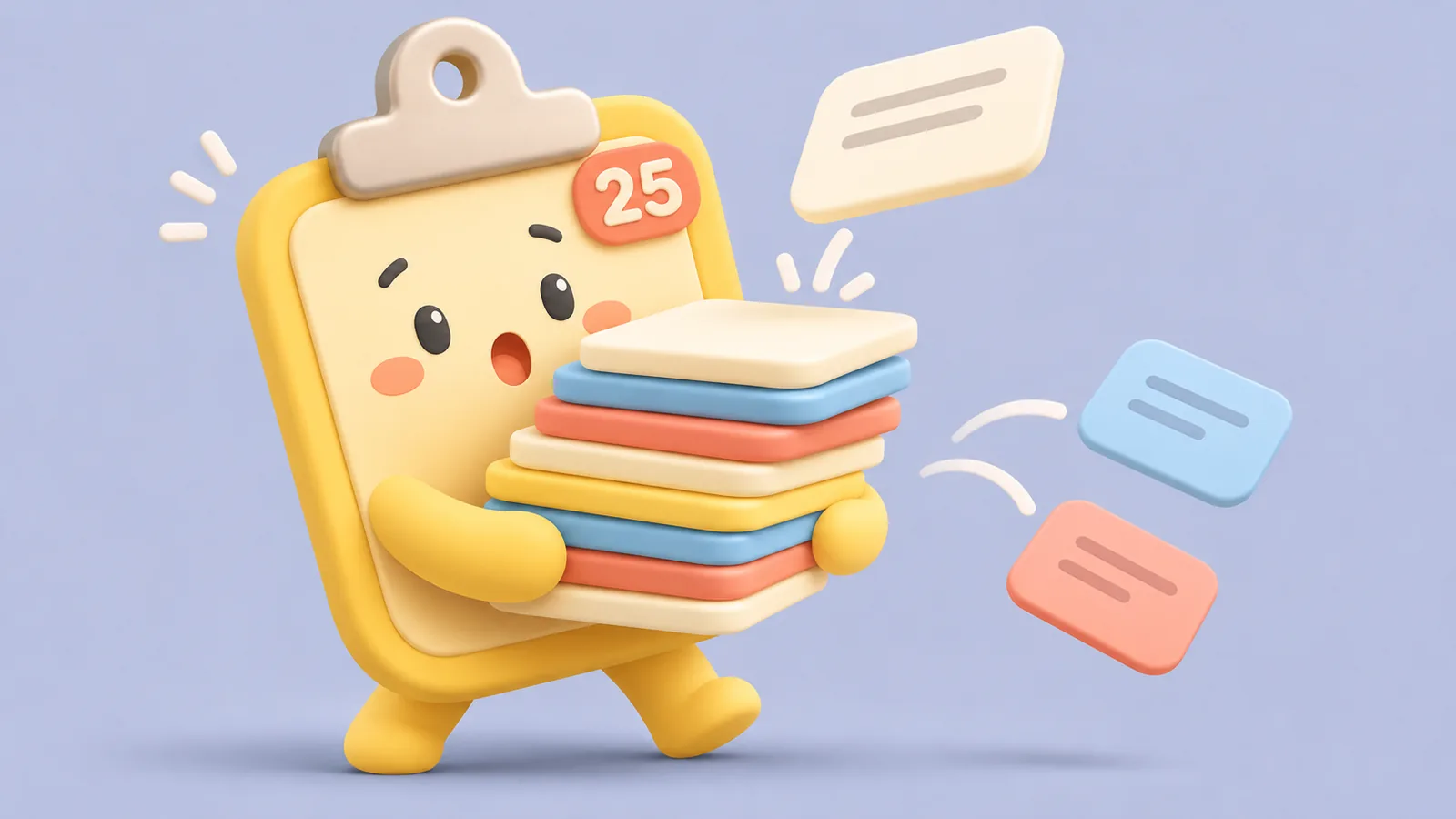
Windows 11 clipboard history caps out at 25 items, ignores clips over 4 MB, and purges unpinned entries on reboot, with no registry setting to raise the ceiling. Here is how the limit works and what to use when you outgrow it.
By ClipsX
On this page
The moment you realize your copied data is gone
It starts with a familiar moment of frustration: you copied a critical SQL query, API response, or server config snippet early this morning. A few hours later, after copying dozens of error logs, Slack messages, and documentation links, you reboot your workstation. You hit Win+V expecting to paste that morning snippet, only to find an empty list or just the few clips you took after restarting.
This isn't a glitch, and you didn't accidentally toggle a hidden switch. This is Windows 11 clipboard history functioning precisely as Microsoft architected it. The native feature operates on a rigid FIFO (First-In, First-Out) rotation buffer with severe storage ceilings. Once you understand these boundaries, you can stop losing work and decide whether the default scratchpad suits your workflow or if you require dedicated clipboard memory.
The 4 hard limits of Windows 11 clipboard history
Microsoft documents four specific boundaries for the Windows clipboard subsystem. These limits apply across every Windows 11 PC, regardless of edition (Home, Pro, Enterprise) or hardware specs (whether you have 8 GB or 64 GB of RAM).
Crucially, there is no setting, registry key, or Group Policy to raise these thresholds. Searching online often turns up registry myths proposing keys like HistoryLimit under Software\Microsoft\Clipboard, but Windows simply ignores them. What ships is a hard-coded system constraint.
| System limit | Underlying mechanism | Workflow consequence |
|---|---|---|
| 25-item capacity cap | Strict FIFO circular queue: copying item #26 silently drops unpinned item #01 | Fast copiers lose morning research, links, and code snippets within hours |
| 4 MB per-item limit | Clips exceeding 4 MB are silently dropped and never recorded in history | High-res screenshots, large logs, and rich graphics fail to persist with zero error dialogs |
| Volatile RAM storage | Unpinned entries live in temporary memory and purge on restart or shutdown | Windows updates or routine reboots wipe out your active scratchpad |
| No registry override | Hard-coded limit in Windows Shell; no Group Policy or registry flag exists | Workstation specs cannot compensate; power users must look beyond native Win+V |
How to enable Win+V and protect critical clips with pinning
Because clipboard history is disabled by default in clean Windows installations, many users encounter these constraints without realizing the feature exists. Enabling it takes seconds, and pinning is the only built-in mechanism Windows provides to shield an item from both the 25-item FIFO queue and reboot wipes.
Pinned items also survive the 'Clear all' button, making them suitable for fixed boilerplate: meeting room links, recurring email templates, or an active ticket number. However, treat pinning as a small favorite drawer, not a general archive.
- Press Win+V. If clipboard history is currently turned off, click the 'Turn on' button in the popup dialog, or enable it under Settings → System → Clipboard.
- Copy text, screenshots, or formatted text normally. Your clipboard panel will begin retaining up to 25 recent snippets.
- Press Win+V, hover over a snippet you need to protect, and click the pin icon. Pinned clips survive reboots and batch clearances.
Why manual pinning fails for real-world workflows
Pinning works well when you know with 100% certainty that a piece of information will matter in the future. In practice, you rarely know a snippet was essential until hours or days later: when a teammate asks for that specific link, when a build breaks with the same stack trace, or when you need exact wording from an earlier draft.
Furthermore, the native Win+V interface does not scale. It lacks text search, tags, and date filtering; finding a pinned item requires slow, manual scrolling through an unindexed visual feed. If you accidentally toggle clipboard history off in Settings, every pinned item is permanently erased with zero recovery option.
Cloud clipboard sync also presents major compliance hurdles. While Windows allows cross-device clipboard sync via a personal Microsoft Account, enterprise IT policies frequently disable cloud clipboard synchronization to prevent sensitive credentials and PII from syncing across external servers.
Upgrading from a volatile buffer to durable working memory
The built-in Windows clipboard is adequate as a temporary buffer for immediate copy-pasting across adjacent windows. It breaks down the moment your clipboard becomes an archive of your daily work, especially when losing earlier copies forces you to re-run queries, re-read documentation, or ask colleagues for files you already had.
This is where a dedicated local-first clipboard manager becomes indispensable, and why we created ClipsX. Built with an encrypted local SQLite engine, ClipsX retains your complete clipboard history (including code snippets, high-resolution screenshots, files, and formatted text) without arbitrary 25-item limits. When you forget exact words, its on-device Meaning Search uses local AI models to retrieve clips by conceptual meaning without cloud leakage. It is 100% free and open-source for Windows, macOS, and Linux.
| Feature | Windows 11 (Win+V) | ClipsX |
|---|---|---|
| History capacity | Hard-capped at 25 items | Unlimited local history (local SQLite) |
| Reboot persistence | Wiped on restart (unless manually pinned) | 100% persistent across reboots & crashes |
| Per-clip size ceiling | Drops any payload over 4 MB | Handles large images, files, and multi-megabyte logs |
| Search & discovery | None (manual visual scrolling only) | Instant fuzzy text search + local AI Meaning Search |
| Privacy & data boundary | Sync routes clips through cloud servers | 100% on-device, local encryption, zero tracking |
| Cross-platform support | Windows 10/11 only | Windows, macOS, and Linux |
Frequently asked questions
How many items does Windows 11 clipboard history store? Exactly 25 items. When you copy a 26th item, the oldest unpinned entry is permanently erased from the bottom of the list without any warning or confirmation dialog.
Why does my clipboard history disappear after restarting my PC? Because Windows stores unpinned clipboard items in temporary volatile memory by design. Only items that you explicitly pin before restarting will survive a reboot or shutdown.
Can I increase the Windows 11 clipboard limit via the registry or Group Policy? No. Microsoft does not provide any setting, registry value (such as a DWORD key), or policy to increase the 25-item buffer or the 4 MB per-item limit. To retain more items, you must use a dedicated clipboard manager.
Is Windows clipboard history safe for passwords and API keys? Caution is required: any copied credential remains exposed in plain text to anyone who presses Win+V on your unlocked computer. If you must copy secrets, clear history immediately, and remember that pinned credentials survive 'Clear all' until unpinned.
Sources & next steps
Keep exploring
All articles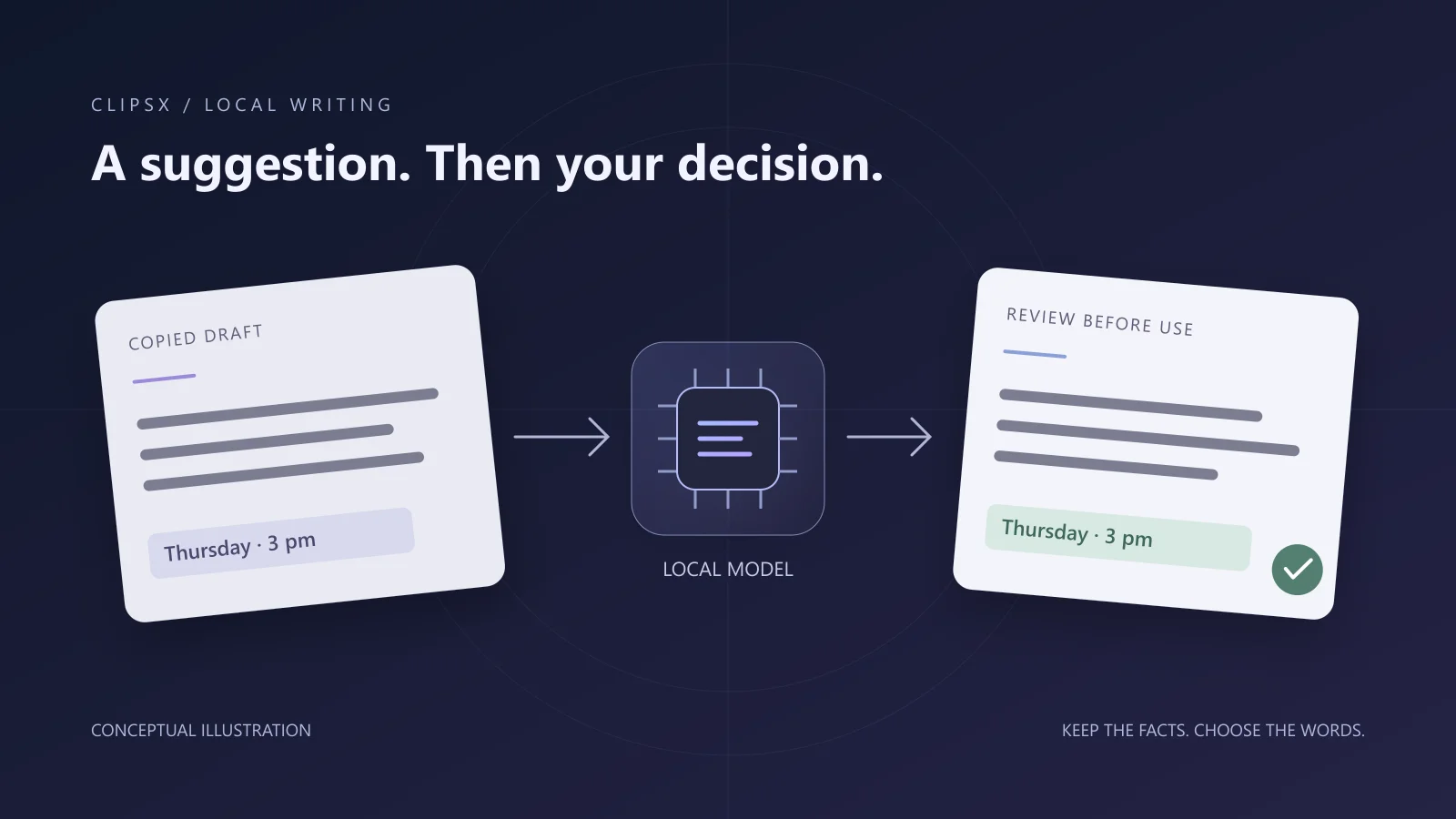
Local AI workflows5 min read
Rewrite work messages with local AI on Windows, macOS, and Linux
Refine copied messages on-device using Ollama and ClipsX Rewrite across Windows, macOS, and Linux. Compare model suggestions side-by-side, verify factual commitments, and keep full control over what you send.
Read article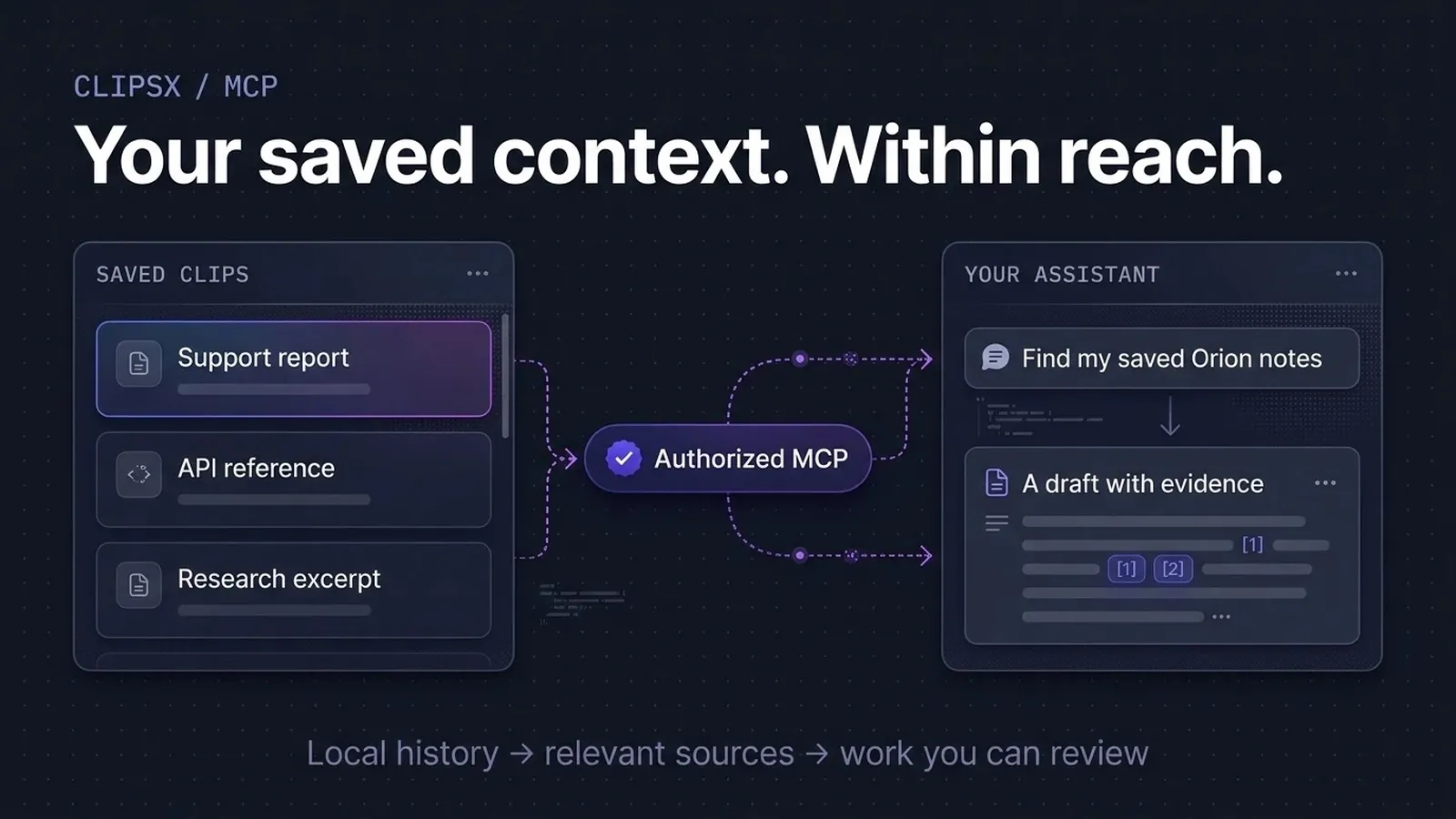
Assistant workflows6 min read
Search clipboard history from Codex and Claude Code
Connect developer assistants like Codex and Claude Code to local clipboard history using MCP. Grant scoped, read-only access to query past clips and verify citations against source evidence.
Read article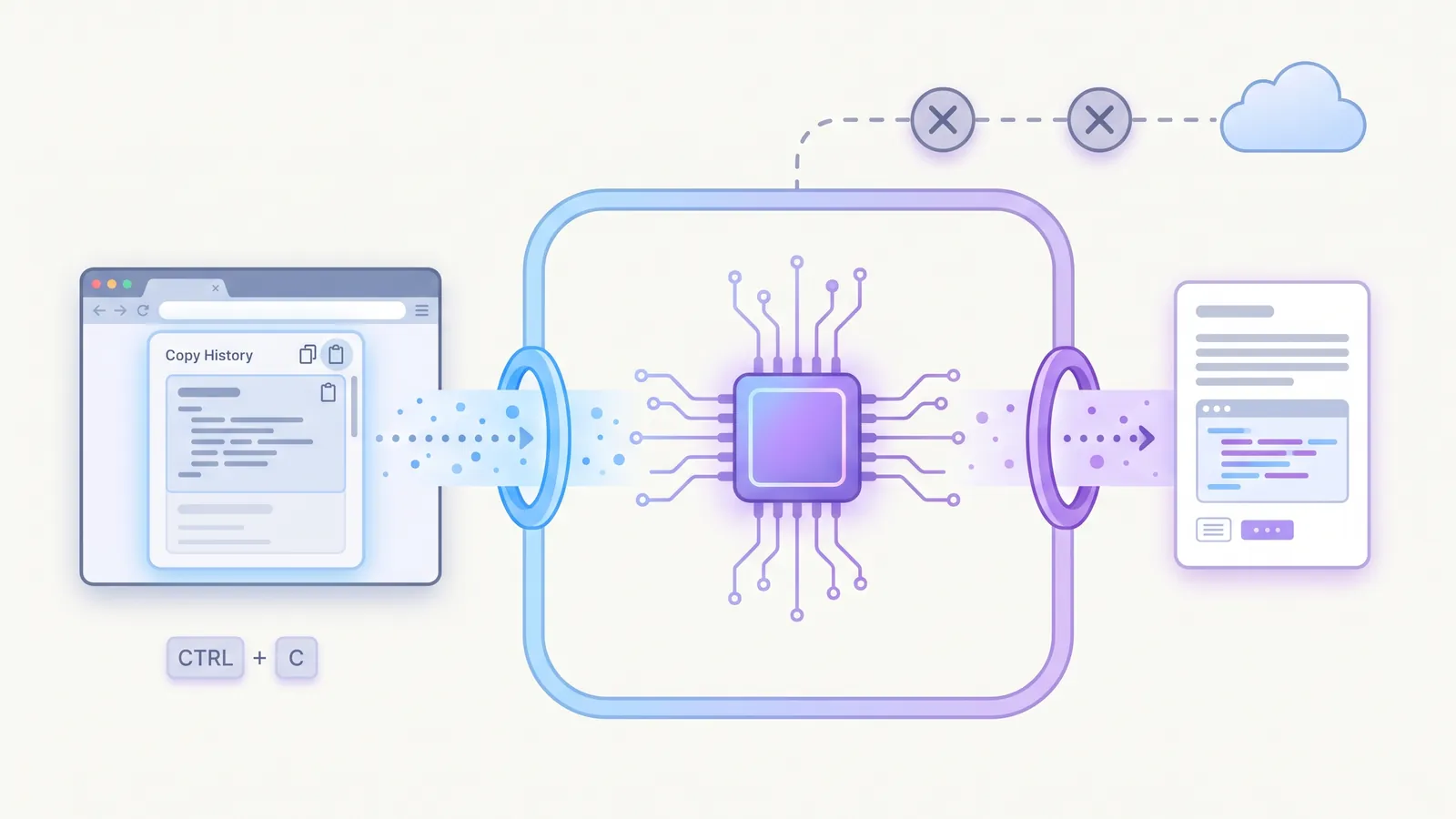
Extensions4 min read
Why clipboard extensions need boundaries
You copy API tokens, customer records, and private messages every day. Here is how WebAssembly sandboxing lets you format and transform snippets without leaking your clipboard.
Read article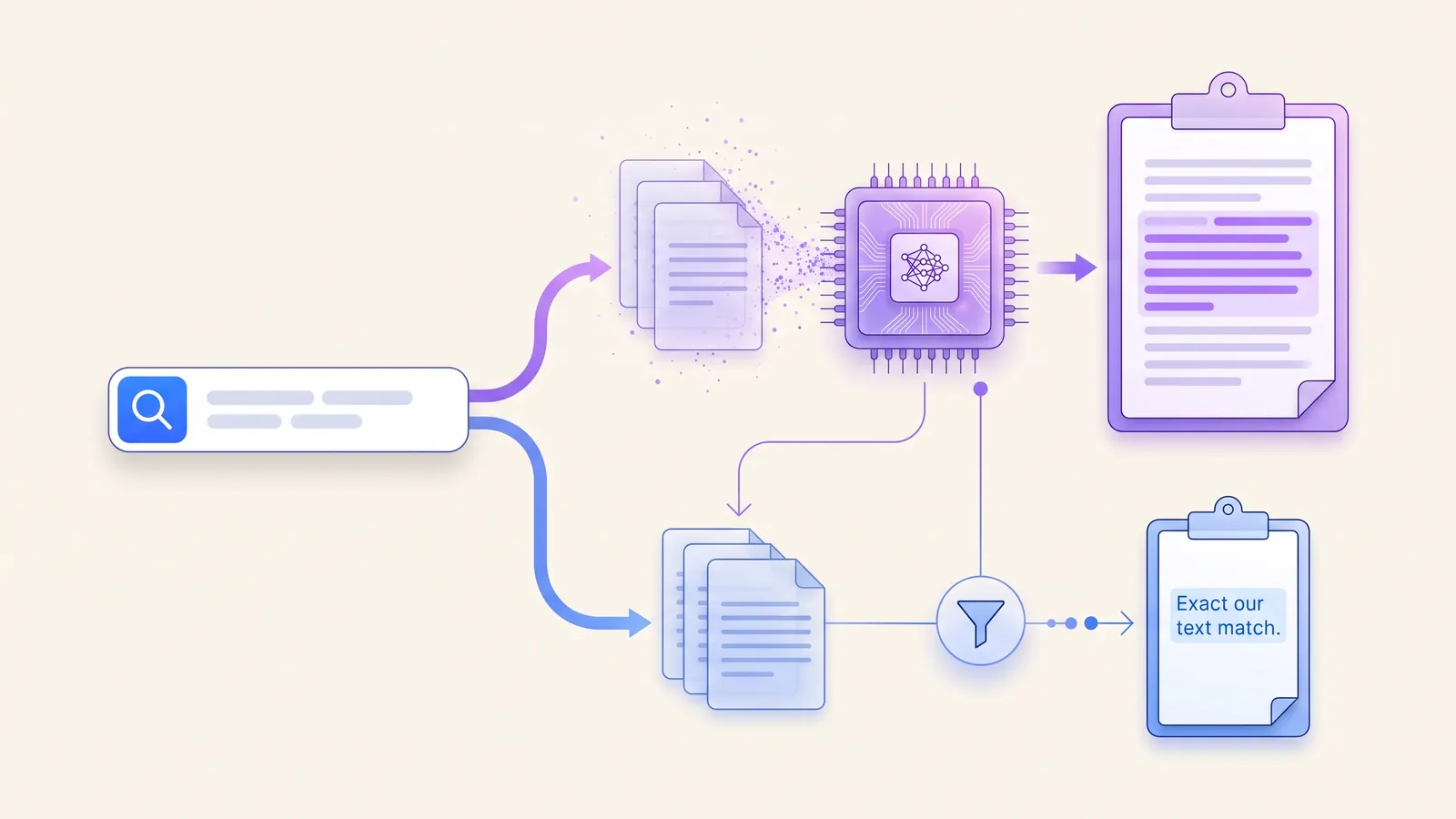
Local AI3 min read
Search clipboard history by meaning with Ollama
Use local embeddings to find a saved clip by its meaning. Compare search modes, follow the setup checklist, and inspect the original.
Read article
Privacy4 min read
Local-first is a data boundary, not a badge
What stays on your device, what an optional account changes, and what to check before connecting a service.
Read article