macOS workflows7 min read
Mac clipboard history: the 7-day Spotlight limit, and free tools that keep more
Mac clipboard history in Spotlight deletes your copies after 7 days, and older macOS has none. Here is the limit, and a free app that keeps everything.
By ClipsX

On this page
The week-old copy that isn't there anymore
You copied something useful last week: a link, an address, a tracking number. Today you open Spotlight, press Command-4 to check your clipboard history, and it's not there. Not because you cleared it. Because a week passed.
That's not a bug, and you didn't turn anything off by accident. macOS Tahoe finally gave the Mac a built-in clipboard history, but it comes with an expiry date, and on older Macs there is no history at all. Once you know the limits, you can decide whether they're fine for you or whether you need something more.
The limits, plainly
Mac clipboard history lives inside Spotlight. Press Command-Space, then Command-4. It has four limits that matter, and unlike Windows, the one that bites is time, not the number of items.
A few more things worth knowing: it covers the text, images, links and files you copy, and you search it from the same Spotlight field. Apple doesn't publish a maximum number of items. The limit that actually bites is time, not count.
Apple also warns that sensitive information may appear on the Clipboard, and anyone who can open Spotlight on your unlocked Mac can see the list. You can erase it from the same view with Clear History, or with the Clear Clipboard History button in System Settings → Spotlight, and you can turn the feature off at any time under Results from Clipboard.
| Limit | What it means |
|---|---|
| 7 days, maximum | In System Settings → Spotlight you choose how long history stays available: 30 minutes, 8 hours or 7 days. 7 days is the ceiling. There is no 'keep forever' option. |
| No pinning | There is no way to pin or favourite an item to keep it past the limit. When its time is up, it's gone. |
| Tahoe only | Clipboard history arrived with macOS 26 Tahoe. On macOS 15 Sequoia and earlier, there is no built-in history at all. The clipboard holds a single item. |
| Off until you allow it | The first time you open it, macOS asks whether to allow Clipboard results. Nothing you copied before that moment was recorded. |
How to open it, and set it to the full 7 days (30 seconds)
If you have never opened it, your history may be sitting on the shortest setting, or not recording at all. Setting it up takes half a minute:
One catch: setting it to 7 days only helps from now on. Anything that has already expired can't be brought back. That is exactly the moment most people discover this feature exists.
When Tahoe first shipped, items lasted up to 8 hours with no choice; the 30 minutes / 8 hours / 7 days options arrived in macOS 26.1. If you don't see the choice, update your Mac.
- Press Command-Space, then Command-4, or click the Clipboard button to the right of the Spotlight search field. The first time, click Allow when macOS asks about Clipboard results.
- Type in the search field to search your history. Click the copy icon next to an item (or select it and press Command-C), then press Command-V where you want it.
- Open System Settings → Spotlight, make sure Results from Clipboard is on, and under 'Clipboard history is available in Spotlight' choose 7 days.
On Sequoia and earlier, there is no history to open
If your Mac runs macOS 15 Sequoia or anything older, none of the above exists. The clipboard holds exactly one item, the last thing you copied, and each new copy replaces it. Finder → Edit → Show Clipboard shows you that one current item, and nothing before it.
There's no setting to turn history on, because the feature isn't there. On those Macs, a clipboard manager app isn't an upgrade; it's the only way to have a history at all.
When the built-in history isn't enough
The built-in tool is fine if your clipboard is a short-term scratchpad. It becomes a problem when you treat your clipboard as memory:
Windows users hit a different wall: a 25-item cap instead of a time limit, covered in the Windows clipboard history limits article. On a Mac, the wall is the calendar.
- The thing you need is from last week, or from eight days ago, which to Spotlight is the same as never.
- You can't protect the one important item. There's no pin, so everything expires on the same schedule.
- You're on an older macOS, where there is nothing to expire because there is nothing at all.
A free, open-source Mac clipboard history app that keeps more
That's the point where a dedicated clipboard manager earns its place. It's why I built ClipsX: it keeps your clipboard history on your own device (text, images, links, files and more) with no 7-day expiry, and lets you search it properly.
If you remember what something was about but not its exact wording, its optional Meaning Search can find it by meaning, using a local AI model you choose. There's no account, your history doesn't leave your machine, and it's free and open source for macOS, Windows and Linux.
Frequently asked questions
What is the Mac clipboard history shortcut?
Press Command-Space, then Command-4. The first opens Spotlight; the second switches it to your Clipboard history. You can also click the Clipboard button to the right of the search field instead of pressing Command-4.
How long does Mac clipboard history keep items?
Up to 7 days, depending on the setting you choose in System Settings → Spotlight: 30 minutes, 8 hours or 7 days. On the first release of Tahoe the limit was up to 8 hours; the choice arrived with macOS 26.1. There is no setting to keep items longer than 7 days.
Why is my Mac clipboard history not working?
Work through these, in order: (1) You need macOS 26 Tahoe or later. Sequoia and earlier don't have the feature. (2) Clipboard results may be off, or you clicked Don't Allow the first time; turn on Results from Clipboard in System Settings → Spotlight. (3) History only starts once you allow it, so copies from before that moment were never recorded. (4) The item may simply be older than the retention window you set. Check whether it's set to 30 minutes or 8 hours instead of 7 days.
Does macOS Sequoia have clipboard history?
No. macOS 15 Sequoia and earlier keep only the last thing you copied; Finder → Edit → Show Clipboard shows that single item. Built-in history arrived with macOS 26 Tahoe. On Sequoia, a clipboard manager app is the only way to keep a history.
Is there a Mac clipboard history like Windows?
Spotlight's clipboard history is the Mac equivalent of Windows' Win+V panel, but the trade-offs are reversed: Windows caps you at 25 items and lets you pin; the Mac has no item cap to hit, but everything expires after at most 7 days and nothing can be pinned.
Can I keep one item longer than 7 days?
Not inside Spotlight. There's no pin or favourite. Your options are to copy the item into an app like Notes before it expires, or use a clipboard manager that doesn't expire your history.
Is Mac clipboard history safe for passwords and sensitive data?
Be careful with it: Apple itself warns that sensitive information may appear on the Clipboard, and the list is one shortcut away on an unlocked Mac. If you copy secrets, use the shortest retention window (30 minutes) and clear the history afterwards. Use Clear History in the Spotlight clipboard view, or Clear Clipboard History in System Settings → Spotlight.
Sources & next steps
Keep exploring
All articles
Windows workflows6 min read
Windows 11 clipboard history: the 25-item limit and how to overcome it
Windows 11 clipboard history caps out at 25 items, ignores clips over 4 MB, and purges unpinned entries on reboot, with no registry setting to raise the ceiling. Here is how the limit works and what to use when you outgrow it.
Read article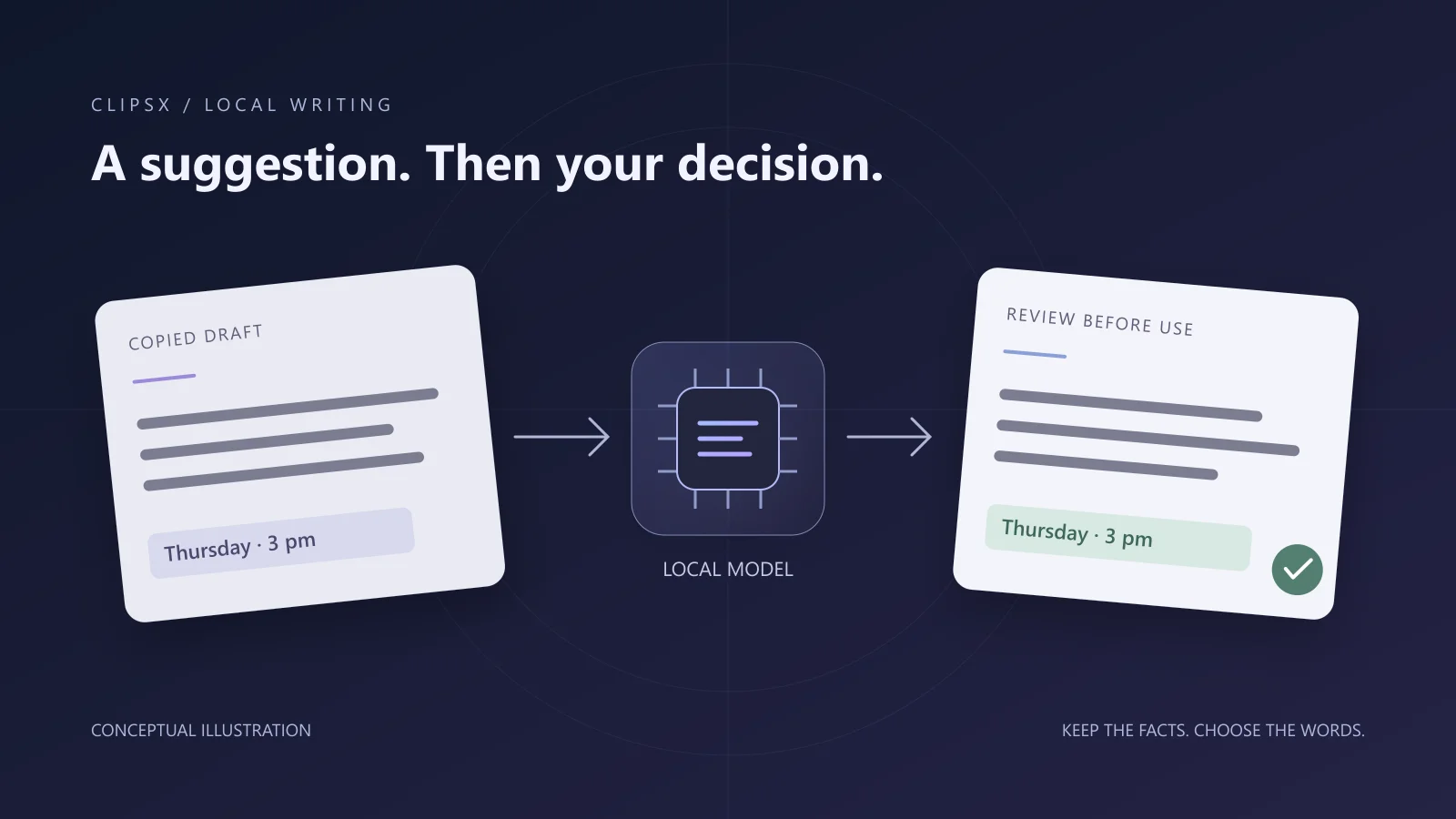
Local AI workflows5 min read
Rewrite work messages with local AI on Windows, macOS, and Linux
Refine copied messages on-device using Ollama and ClipsX Rewrite across Windows, macOS, and Linux. Compare model suggestions side-by-side, verify factual commitments, and keep full control over what you send.
Read article
Assistant workflows6 min read
Search clipboard history from Codex and Claude Code
Connect developer assistants like Codex and Claude Code to local clipboard history using MCP. Grant scoped, read-only access to query past clips and verify citations against source evidence.
Read article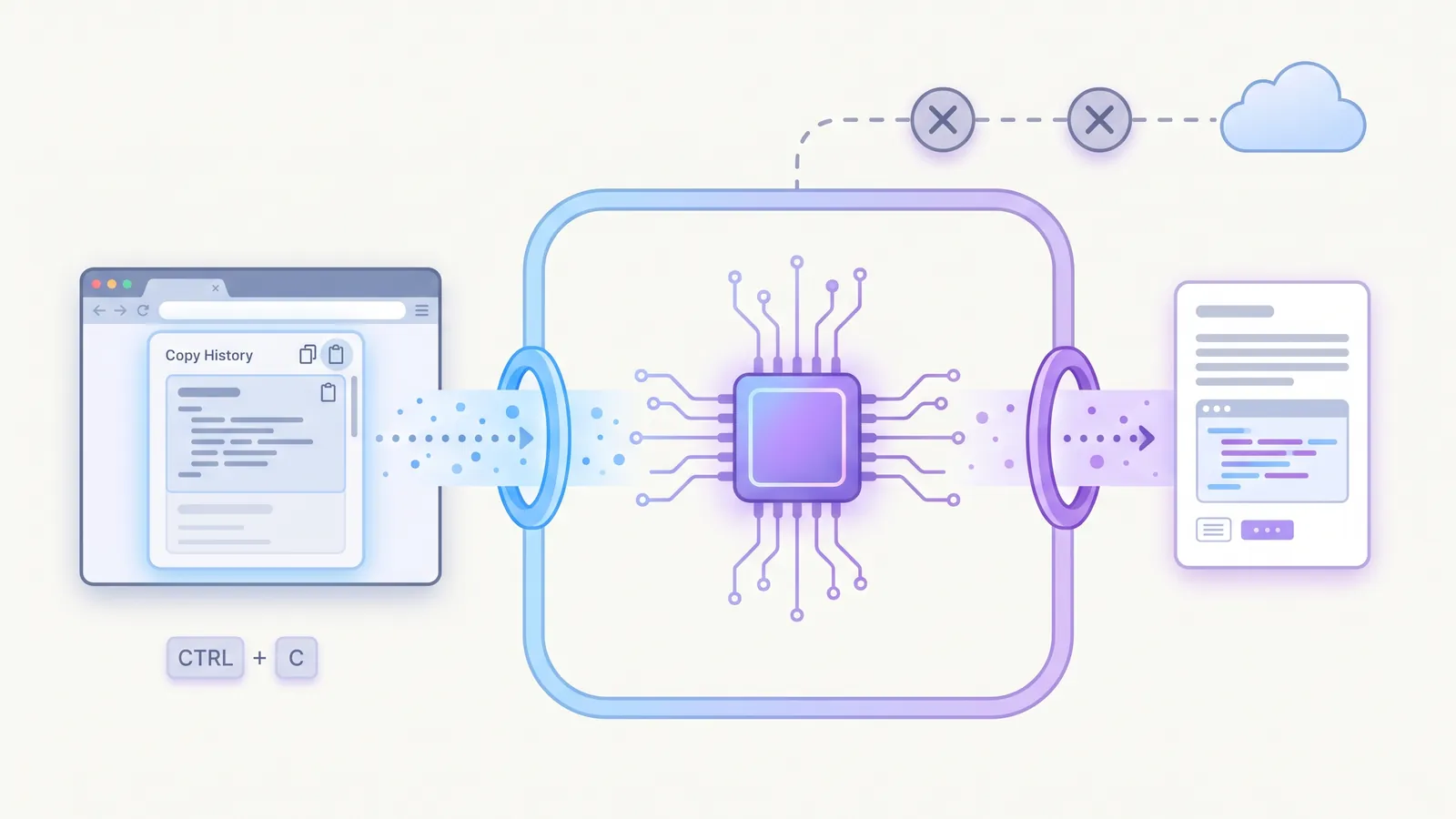
Extensions4 min read
Why clipboard extensions need boundaries
You copy API tokens, customer records, and private messages every day. Here is how WebAssembly sandboxing lets you format and transform snippets without leaking your clipboard.
Read article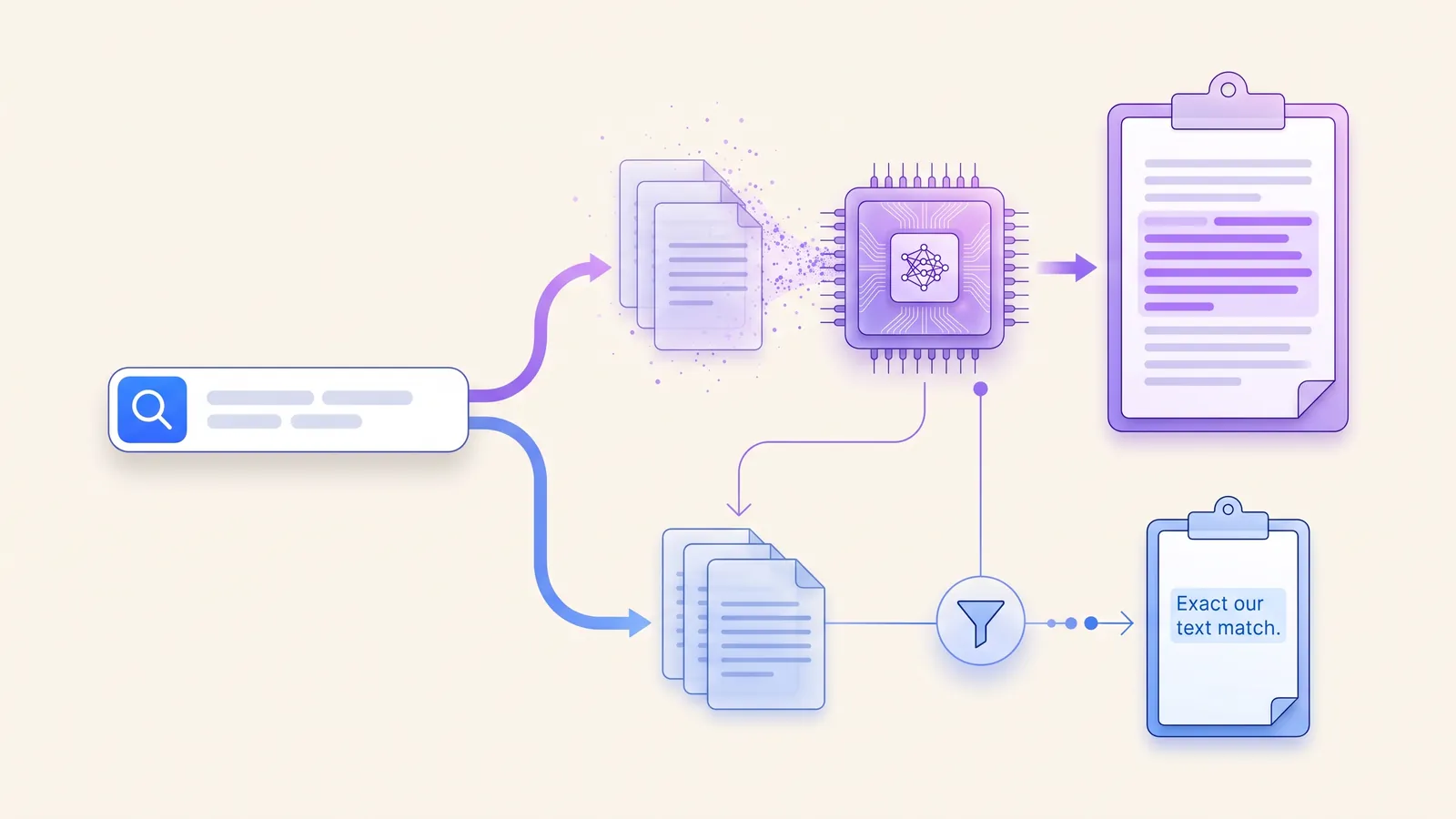
Local AI3 min read
Search clipboard history by meaning with Ollama
Use local embeddings to find a saved clip by its meaning. Compare search modes, follow the setup checklist, and inspect the original.
Read article
Privacy4 min read
Local-first is a data boundary, not a badge
What stays on your device, what an optional account changes, and what to check before connecting a service.
Read article