Windows workflows9 min read
Windows clipboard history not working? 7 fixes for Win+V
Win+V shows nothing? Try these 7 fixes, from turning history on to checking the policy that greys it out. Learn which copies Windows can still show.
By ClipsX

On this page
When Win+V shows nothing
You copied something, pressed Win+V, and got nothing. No list, no error you can act on, just an empty panel, or a “Turn on” button you already pressed.
Most of the time this is one of three things: history was never actually turned on, the panel is holding a stuck item, or something on the PC (a policy, a crashed service) is blocking it. Work through the fixes below in order. They go from the 30-second check to the last-resort tests, and each one tells you how to know whether it worked before you move on.
| What you see | Most likely cause | Go to |
|---|---|---|
| Win+V shows only a Turn on button | History is off. It is off by default. | Fix 1 |
| Win+V shows nothing at all, or “Can't show history” | History is off, or the panel is stuck | Fix 1, then Fix 2 |
| The panel opens but stays blank, even though history is on | A stuck item, or Explorer or the clipboard service needs a restart | Fix 2, then Fixes 3-4 |
| The toggle in Settings is greyed out | A policy has disabled clipboard history, usually on a work or school PC | Fix 5 |
| Items vanish every time you restart | Windows clears unpinned items on restart by design | The limits table below |
| Items appear on one PC but not the other | Sync is off, or the PCs use different accounts | The sync note in Fix 6 |
| Win+V stopped working after you installed another clipboard tool, or history only fails while that tool is running | Another clipboard manager may be interfering | The check after Fix 7 |
The limits, plainly
Before you start troubleshooting, check the limits that explain why many copied items do not appear in Win+V.
If an item has already been pushed out of the 25-entry history, was bigger than 4 MB, or was unpinned when you restarted, the fixes below will not bring it back. You can pin items you still have or save them in your notes.
| Limit | What it means |
|---|---|
| 25 items, maximum | Win+V holds up to 25 entries. New copies push out the oldest unpinned item when the history is full. |
| 4 MB per item | Anything bigger is not saved at all. Supported formats are text, HTML and bitmap. |
| Unpinned items are wiped on restart | Unpinned items are cleared every time the PC restarts. Pinned items survive a restart, but turning history off in Settings erases everything, pins included. |
| Nothing from before you turn it on | History only records copies made after the feature is on. Earlier copies cannot be recovered from the panel. |
Fix 1: Turn history on, and test it properly (30 seconds)
Start here because clipboard history is off by default. If both fresh copies appear after you enable it, you are done. If the toggle is greyed out, skip to Fix 5. If history is on and the panel is still empty, keep going to Fix 2.
- Press Win+V. If it offers a Turn on button, select it.
- You can also go to Start, Settings, System, Clipboard and set Clipboard history to On.
- Copy two different things, such as two short words in Notepad, then press Win+V again. Both should appear, newest first.
Fix 2: Clear the history, then toggle it off and on
A bad or stuck entry can leave the panel blank even with history on. Save anything you need to keep before toggling history off, since that also removes pinned items.
If the panel works after this reset, a stuck item was likely the cause. If it goes blank again after working for a while, check the service in Fix 4.
- Press Win+V and select Clear all. Or go to Settings, System, Clipboard and select Clear under Clear clipboard data. This removes everything except pinned items.
- Turn Clipboard history off, restart the PC, then turn it back on.
- Copy a few short plain-text items and press Win+V again.
Fix 3: Restart Windows Explorer
When copy and paste still work but Win+V shows nothing, try restarting Windows Explorer to see whether the history panel responds again.
- Press Ctrl + Shift + Esc to open Task Manager.
- Find Windows Explorer, right-click it, and select Restart. Your taskbar will flicker for a moment.
- Copy something new and press Win+V.
Fix 4: Restart the Clipboard User Service
Windows runs clipboard history through the Clipboard User Service (cbdhsvc). If the service has stopped, clipboard history can stop working.
- Press Win+R, type services.msc, and press Enter.
- Find Clipboard User Service, right-click it, and select Restart if available. Windows may append a suffix to the name. If the service template was disabled on your own PC, restore its default startup type, Automatic (Delayed Start), and restart the PC.
- Copy something new and press Win+V.
Fix 5: Check for a policy when the toggle is greyed out
If you cannot turn on the Clipboard history toggle, a policy may have disabled it. This is common on work or school PCs with centrally managed settings.
- On a work or school PC, ask your IT administrator. The organisation controls the policy.
- On your own PC running Windows Pro, Enterprise or Education, open the Local Group Policy Editor (gpedit.msc). Go to Computer Configuration, Administrative Templates, System, OS Policies. Open Allow Clipboard History, set it to Not Configured or Enabled, and select OK. Restart and try Fix 1 again.
- Windows Home does not include the Group Policy Editor. If the toggle is greyed out on Home, check whether the PC is managed through a work or school account.
Fix 6: Run Windows Update, then repair system files
If the panel worked before and broke after an update, or if it keeps breaking, try repairing the Windows system files that clipboard history depends on.
If the problem is syncing between PCs, check the account and sync settings first. Sign in to both PCs with the same Microsoft or work account, then enable clipboard sync on both.
- Install any pending Windows updates and restart.
- Open Command Prompt as administrator. Run DISM.exe /Online /Cleanup-Image /RestoreHealth first. Once it completes successfully, run sfc /scannow.
- Restart, turn history on if needed, and test with two fresh copies.
Fix 7: Test a new local Windows account
Testing with a new local account helps you work out whether the problem is in your user profile or affects Windows as a whole.
- Create a new local account in Settings, Accounts, Other users.
- Sign in to it, turn clipboard history on, and copy two items.
- If Win+V works there, the problem is specific to your usual account. Moving to a fresh profile is one way to resolve it. If it fails in the new account too, report the system-wide problem through Feedback Hub with your Windows build and the steps that reproduce it.
Check for another clipboard manager first
If you already use a clipboard manager, or you tried one before, it can take over the clipboard and leave Win+V with nothing to show. Two clipboard managers running at once can fight over the same copies.
Close or pause the other clipboard manager completely. Do not just minimise it. Check the system tray and quit it from there.
Copy two short plain-text items and press Win+V.
If history works now, the other app was likely involved. You can keep using Win+V on its own. If you prefer a dedicated manager, try running one at a time to avoid the same conflict.
When Win+V is enough, and when to keep a longer history
If Win+V works after these steps and you mainly use it for recent copies, you can keep using it. Pin the items you return to often, or save important snippets in your notes. If it still fails on a new account, send the details through Feedback Hub as described in Fix 7.
If you often need to find something you copied before a restart, ClipsX is a free, open-source option. It saves your history locally across restarts and lets you search your copies without an account or Win+V's 25-item cap.
Frequently asked questions
Why is my Windows clipboard history not working?
Start by checking whether history is on. Press Win+V and select Turn on, or enable Clipboard history in Settings, System, Clipboard. If it is on and still empty, clear the history (Fix 2), restart Windows Explorer (Fix 3), or restart the Clipboard User Service (Fix 4). If the toggle is greyed out, check for a policy (Fix 5).
Why is Win+V not working when I press the shortcut?
First check whether the panel opens at all. If it opens with only a Turn on button, history is off (Fix 1). If nothing opens, another app may be intercepting the shortcut, or Explorer may need a restart (Fix 3). If Ctrl+C and Ctrl+V still work, focus on the history feature.
Why did my clipboard history disappear after a restart?
Windows clears unpinned history on every restart by design. Pin the items you need to keep from the Win+V panel. Pins survive restarts. Turning history off in Settings erases everything, pins included. Save anything important in your notes before you switch it off.
Why is the clipboard history toggle in Settings greyed out?
A policy may have disabled it. On work or school PCs, ask IT. On your own Pro, Enterprise or Education PC, check Allow Clipboard History under Computer Configuration, Administrative Templates, System, OS Policies in the Group Policy Editor (Fix 5).
Why is my clipboard history blank even though it is enabled?
An entry or service may be stuck. Clear the history and toggle the feature off, restart, and turn it back on (Fix 2). If needed, restart Windows Explorer (Fix 3) and the Clipboard User Service (Fix 4). Test with short plain-text copies. Items over 4 MB or in formats other than text, HTML and bitmap are not stored.
Why is clipboard history not syncing to my other PC?
Both PCs must be signed in with the same Microsoft account or the same work account, and clipboard sync must be on for each one. If you use manual sync, select the cloud icon on the text item you want to send.
Can I increase the clipboard history limit?
Windows offers no setting to raise the 25-item cap or the 4 MB per-item limit, or to keep unpinned items after a restart. The Windows clipboard history limits article covers these rules in detail.
Sources & next steps
Keep exploring
All articles
Windows workflows6 min read
Windows 11 clipboard history: the 25-item limit and how to overcome it
Windows 11 clipboard history caps out at 25 items, ignores clips over 4 MB, and purges unpinned entries on reboot, with no registry setting to raise the ceiling. Here is how the limit works and what to use when you outgrow it.
Read article
macOS workflows7 min read
Mac clipboard history: the 7-day Spotlight limit and how to keep copies longer
Find clipboard history in Spotlight, check how long it keeps copies on your version of macOS, and choose how to save anything you want to keep longer.
Read article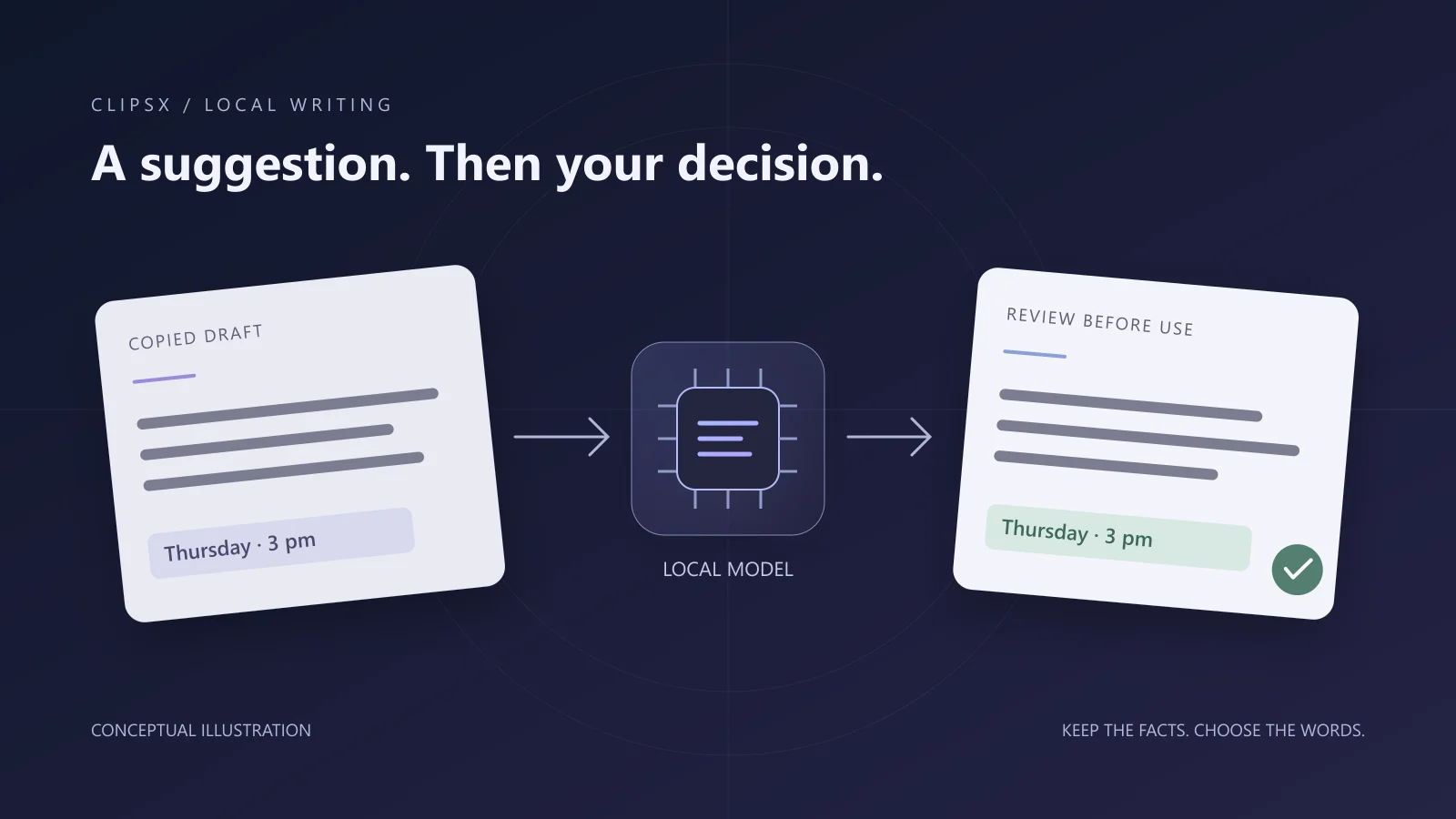
Local AI workflows5 min read
Rewrite work messages with local AI on Windows, macOS, and Linux
Refine copied messages on-device using Ollama and ClipsX Rewrite across Windows, macOS, and Linux. Compare model suggestions side-by-side, verify factual commitments, and keep full control over what you send.
Read article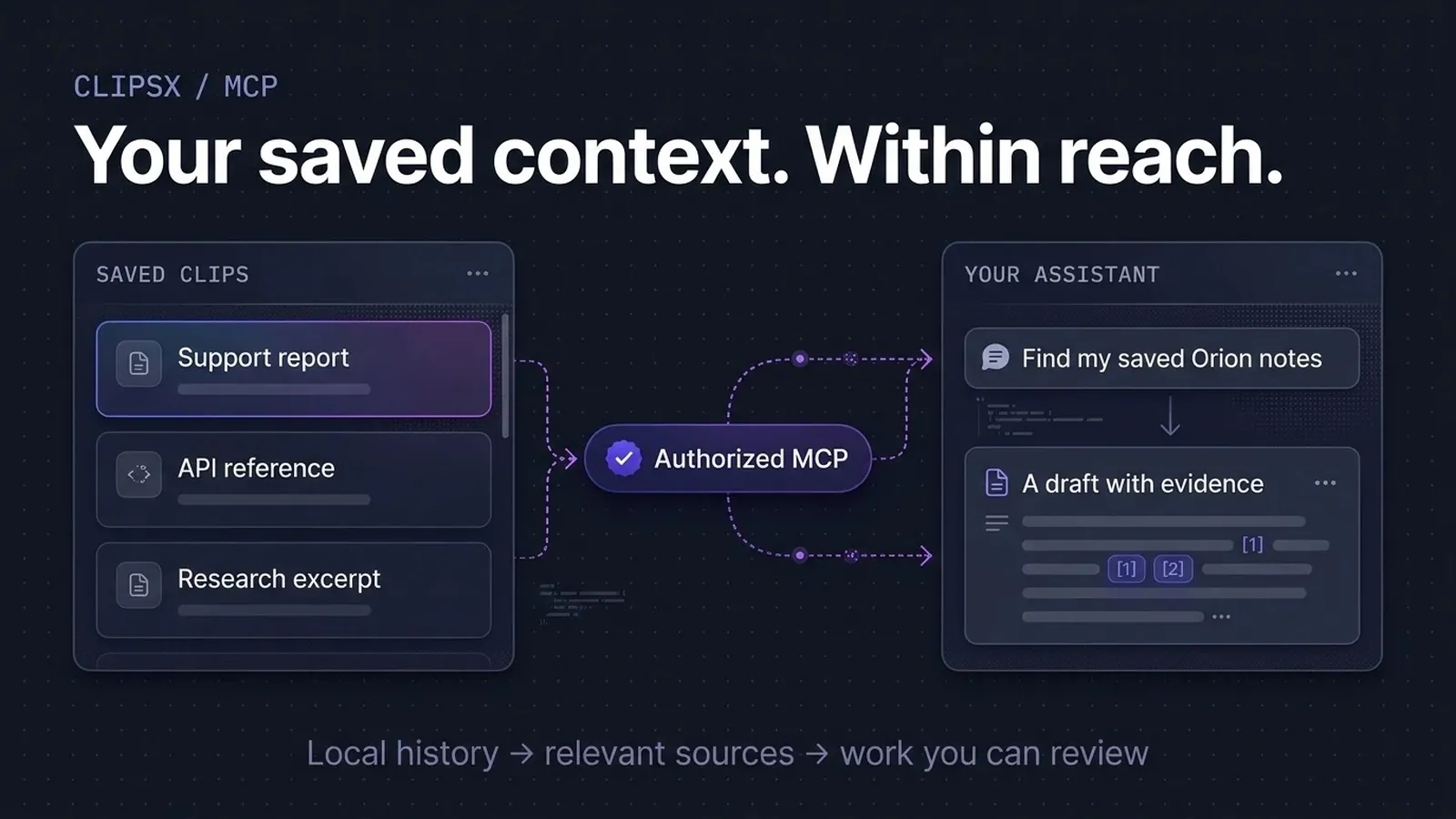
Assistant workflows6 min read
Search clipboard history from Codex and Claude Code
Connect developer assistants like Codex and Claude Code to local clipboard history using MCP. Grant scoped, read-only access to query past clips and verify citations against source evidence.
Read article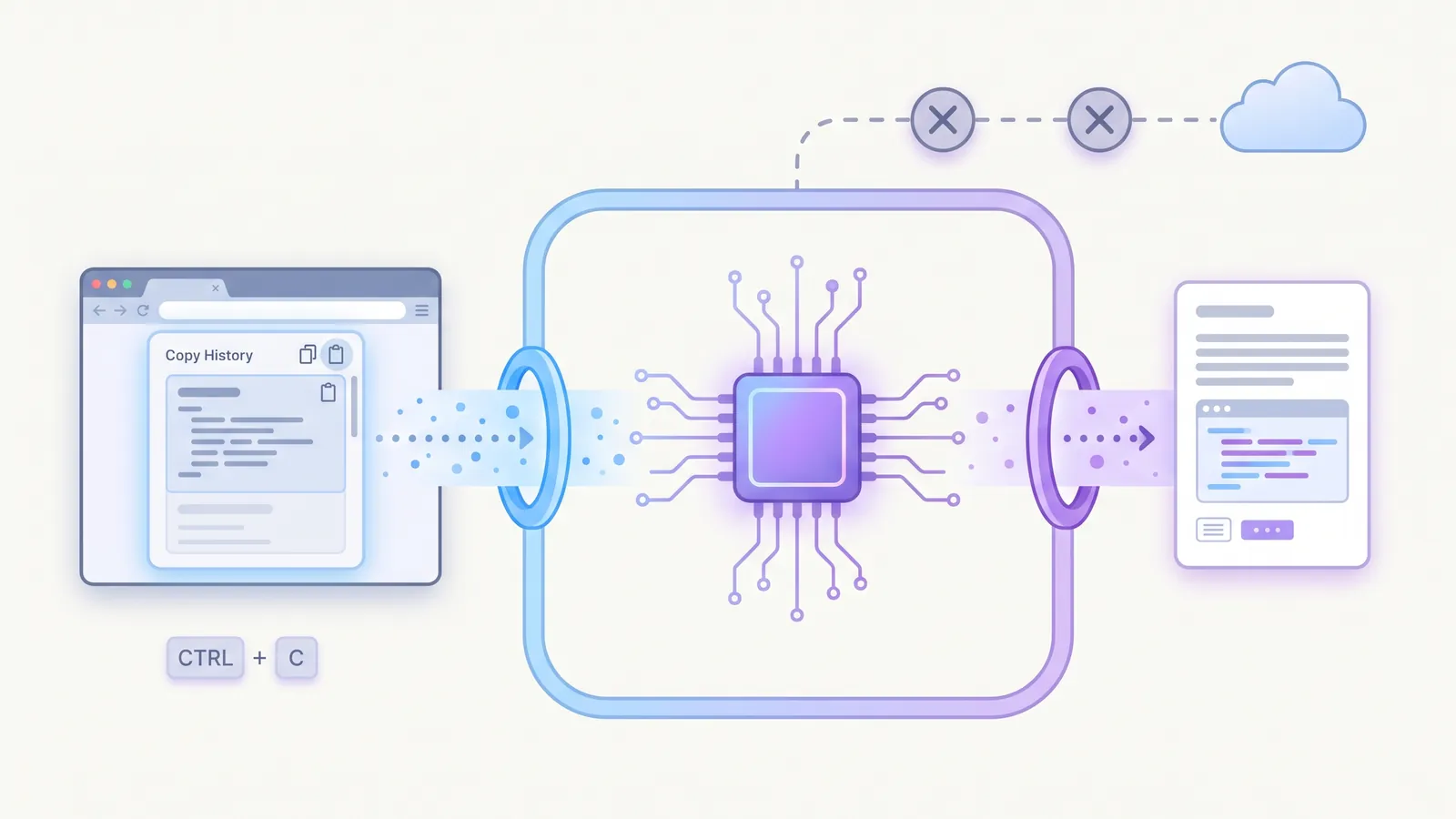
Extensions4 min read
Why clipboard extensions need boundaries
You copy API tokens, customer records, and private messages every day. Here is how WebAssembly sandboxing lets you format and transform snippets without leaking your clipboard.
Read article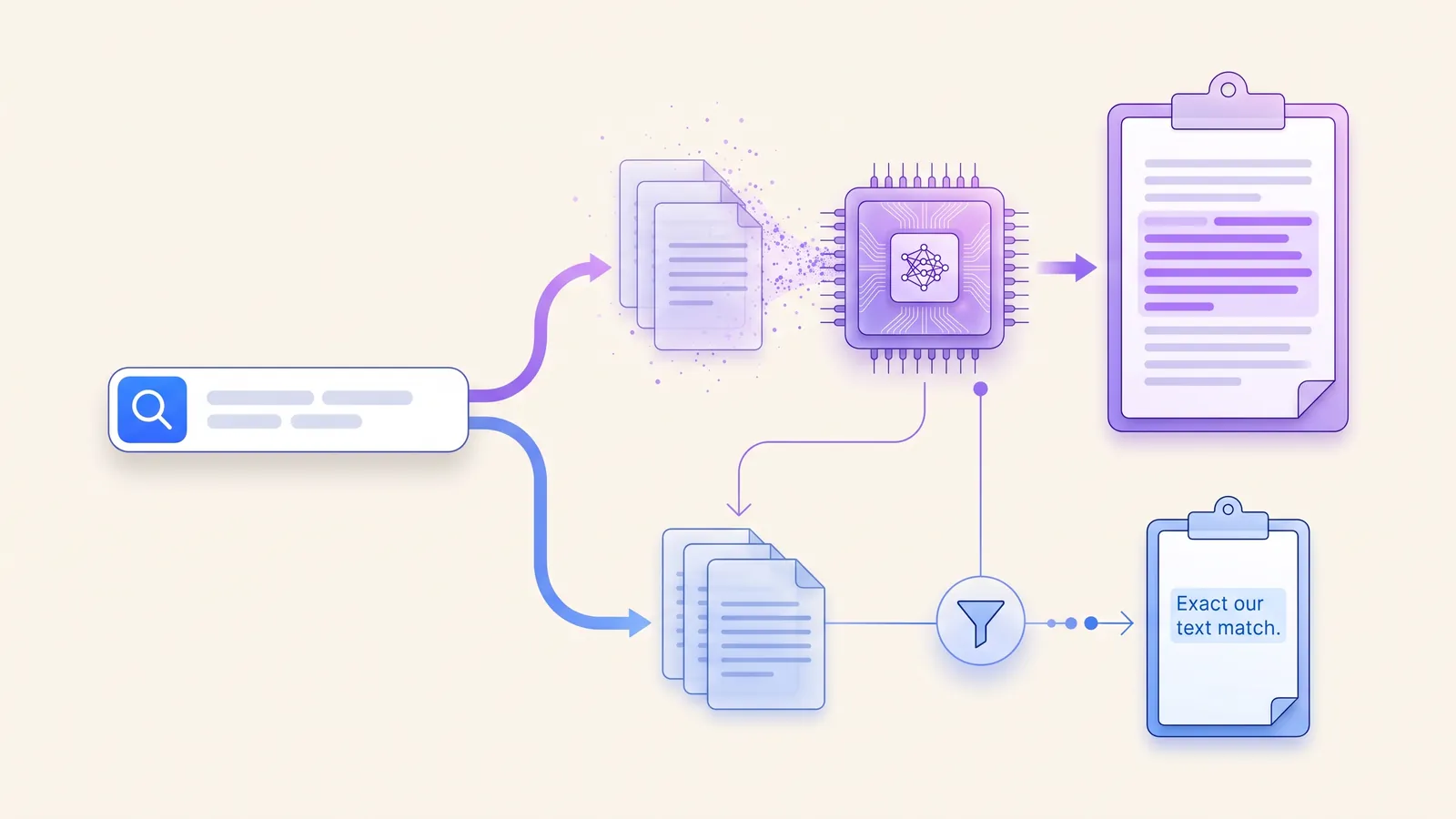
Local AI3 min read
Search clipboard history by meaning with Ollama
Use local embeddings to find a saved clip by its meaning. Compare search modes, follow the setup checklist, and inspect the original.
Read article
Privacy4 min read
Local-first is a data boundary, not a badge
What stays on your device, what an optional account changes, and what to check before connecting a service.
Read article